# Workflow Action - Find Opportunity
> TABLE OF CONTENTS Overview Action Name Action Description Action Details Example Overview The Find Opportunity action allows you to locate an existing…
- Source: https://docs.ghlcustomercare.com/docs/workflows/opportunity-workflow-actions/workflow-action-find-opportunity
- Section: Workflows / Opportunity Workflow Actions
- Reading time: 2 min
- Images: 1, each explained below
---
**TABLE OF CONTENTS**
- [Overview](#overview)
- [Action Name](#action-name)
- [Action Description](#action-description)
- [Action Details](#action-details)
- [Example](#example)
## Overview
The **Find Opportunity** action allows you to locate an existing opportunity **linked to the contact** that triggered the workflow, based on specific criteria. You can choose to find either the **Earliest** (first created) or the **Latest** (most recently created) matching opportunity for that contact. Once found, this opportunity record becomes the reference for all subsequent opportunity-based actions in your workflow. If no match is found, the workflow branches to an alternate path, enabling you to handle that scenario differently (e.g., create a new opportunity).
> **Important:** If there is no contact in the workflow (for example, in the case of an inbound webhook that does not include contact information), you must configure the **Find Opportunity** filters to map certain fields to the webhook parameters. Otherwise, the action will not be able to locate an opportunity.
## Action Name
Find Opportunity
## Action Description
The **Find Opportunity** action searches for an existing opportunity linked to the contact who entered the workflow, matching the filters you specify. All filters are combined using **AND** logic, meaning **all** specified conditions must be met to return a match. If multiple opportunities satisfy these conditions, only one will be returned—either the earliest or the latest, as configured. If no match is found, the workflow continues along a separate “Opportunity Not Found” branch.
## Action Details
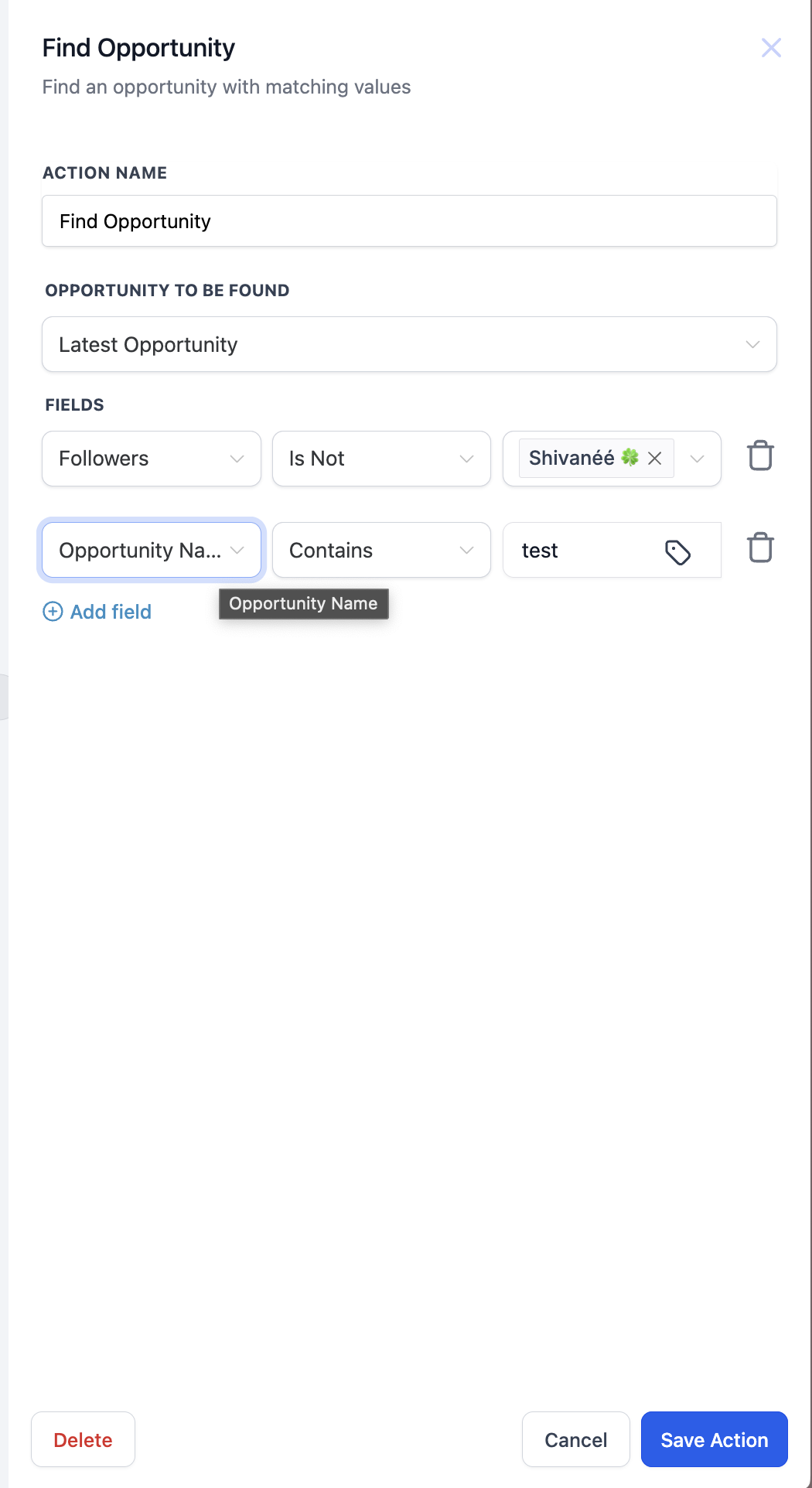
**Action Details (image 1 of 1)**
This screenshot appears in the "Action Details" section of "Workflow Action - Find Opportunity". The text alongside this image reads: The Find Opportunity action searches for an existing opportunity linked to the contact who entered the workflow, matching the filters you specify. All filters are combined using AND logic, meaning all specified conditions must be met to return a match. If multiple opportunities satisfy these…. Immediately after, the guide continues: Value Name Description Mandatory Action Name A custom label to help you identify this step in your workflow. Yes Opportunity to be Found Determines whether to retrieve the Earliest (first created) or Latest (most recently created)….
- What this covers: The Find Opportunity action searches for an existing opportunity linked to the contact who entered the workflow, matching the filters you specify. All filters are combined using AND logic, meaning all specified conditions must be met to return a match. If multiple opportunities satisfy these conditions, only one will be returned—either the earliest or the latest, as configured. If no match is found, the workflow continues along a separate “Opportunity Not Found” branch.
- Controls: Value Name, Description, Mandatory, Action Name, Opportunity to be Found, Earliest, Latest, Filters, AND, Multiple Matches, only one, Branching Behavior
- Next: Value Name Description Mandatory Action Name A custom label to help you identify this step in your workflow. Yes Opportunity to be Found Determines whether to retrieve the Earliest (first created) or Latest (most recently created) opportunity that meets the filter criteria for the contact entering the workflow. Yes Filters One or more conditions to narrow down the search. - All filters use AND logic.
- No limit to the number of filters.
- Filters can reference any standard or custom opportunity field (e.g., Opportunity Name, Followers, Status).
- If there is no contact (e.g., inbound webhook), filters must map certain fields to webhook params.
Yes Multiple Matches If multiple records match, only one opportunity is returned—either the earliest or latest, depending on your choice. — Branching Behavior If an opportunity is found, the workflow follows the Opportunity Found path. If no match is found, it follows the Opportunity Not Found path. —
| **Value Name** | **Description** | **Mandatory** |
| --- | --- | --- |
| **Action Name** | A custom label to help you identify this step in your workflow. | Yes |
| **Opportunity to be Found** | Determines whether to retrieve the **Earliest** (first created) or **Latest** (most recently created) opportunity that meets the filter criteria for the contact entering the workflow. | Yes |
| **Filters** | One or more conditions to narrow down the search. - All filters use **AND** logic.
- No limit to the number of filters.
- Filters can reference any standard or custom opportunity field (e.g., Opportunity Name, Followers, Status).
- If there is no contact (e.g., inbound webhook), filters must map certain fields to webhook params.
| Yes |
| **Multiple Matches** | If multiple records match, **only one** opportunity is returned—either the earliest or latest, depending on your choice. | — |
| **Branching Behavior** | If an opportunity is found, the workflow follows the **Opportunity Found** path. If no match is found, it follows the **Opportunity Not Found** path. | — |
## Example
**Scenario**: A new lead submits a form, and you want to check if an existing opportunity already exists for that lead. If it does, you update the opportunity; if not, you create a new one.
1. **Trigger**: A contact submits a form on your website.
2. **Action**: _Find Opportunity_
- **Action Name**: “Locate Existing Opportunity”
- **Opportunity to be Found**: **Latest Opportunity**
- **Filters**(all conditions must be met):
- **Opportunity Name** → **Contains** → “Contact\_Email\_Address”
- **Status** → **Is** → “Open”
3. **Branching**:
- **Opportunity Found**: Proceed with an _Update Opportunity_ action to modify fields such as Status or add notes.
- **Opportunity Not Found**: Proceed with a _Create Opportunity_ action to add a new record to your pipeline.
This ensures you’re always referencing the correct existing opportunity if one is available, and only creating a new one when necessary.
If no contact is present (e.g., from an inbound webhook without contact info), ensure your filters map relevant fields to the webhook data.
---
Documentation for GHL Customer Care. Support: support@ghlcustomercare.com