# Whatsapp Calling in GHL Customer Care

> Learn how to configure and use WhatsApp Calling in GHL Customer Care, including setup, business hours, permissions, call routing, dispositions, reporting, and mobile support.

- Source: https://docs.ghlcustomercare.com/docs/reselling-products/whatsapp/whatsapp-calling-in-ghl-customer-care
- Section: Reselling Products / WhatsApp
- Reading time: 14 min
- Images: 22, each explained below

---
WhatsApp Calling enables your team to make and receive voice calls directly within WhatsApp conversations in GHL Customer Care, eliminating the need for an external dialer or sharing personal phone numbers. With support for inbound and outbound calling, configurable business hours, call permissions, and call dispositions, your team can resolve customer issues faster while keeping every interaction in one conversation thread. 

This guide explains how to configure WhatsApp Calling, manage permissions, and use the feature on both Web and Mobile.

<table cellpadding="0" cellspacing="0" width="100%"><tbody><tr><td><p style="font-weight: 700">What you'll learn</p><table cellpadding="0" cellspacing="0" width="100%"><tbody><tr><td style="vertical-align: top" width="25%"><p><span style="font-weight: 700">✓</span>&nbsp; What WhatsApp Calling is</p></td><td style="vertical-align: top" width="25%"><p><span style="font-weight: 700">✓</span>&nbsp; How to enable &amp; set up</p></td><td style="vertical-align: top" width="25%"><p><span style="font-weight: 700">✓</span>&nbsp; Configure call permissions</p></td><td style="vertical-align: top" width="25%"><p><span style="font-weight: 700">✓</span>&nbsp; Make and receive calls</p></td></tr></tbody></table></td></tr></tbody></table>

---

**TABLE OF CONTENTS**

-   [What Is WhatsApp Calling?](#overview)
-   [How to Enable WhatsApp Calling](#enable)
-   [Country Availability](#availability)
-   [WhatsApp Inbound Calls](#inbound)
-   [Setting Up WhatsApp Calling](#setup)
-   [Setting Up WhatsApp Call Permissions](#permissions)
-   [Making and Receiving WhatsApp Calls](#calls)
-   [Configure Staff User Calling Settings](#staff)

---

<table cellpadding="0" cellspacing="0" id="overview" width="100%"><tbody><tr><td><p style="font-weight: 700">What Is WhatsApp Calling?</p><p>Voice and chat in one place — no app switching required</p></td></tr></tbody></table>

**Accessing WhatsApp Calling (Beta)**

WhatsApp Calling is currently in **beta** and is not yet available to all users. To request access, please complete the beta access form:
[https://api.leadconnectorhq.com/widget/form/xpGWoA9VnKVWRqr4oibs](https://api.leadconnectorhq.com/widget/form/xpGWoA9VnKVWRqr4oibs)

WhatsApp Calling brings voice conversations directly into your existing WhatsApp conversations, allowing your team to seamlessly transition from messaging to voice whenever a call is the fastest way to help a customer. Keeping calls inside the same conversation preserves context, simplifies communication, and automatically logs call activity alongside messages.

WhatsApp Calling supports both inbound and business-initiated outbound voice calls (where supported by Meta), making it easier for sales and support teams to communicate without switching applications or using external phone systems.

**Key capabilities include:**

-   Make and receive WhatsApp voice calls directly within GHL Customer Care
-   Use WhatsApp Calling on both Web and the LeadConnector Mobile App
-   Configure business availability and temporary unavailable periods
-   Route incoming calls to multiple users
-   Request customer permission before placing business-initiated calls
-   Track every WhatsApp call alongside traditional phone calls
-   Apply custom call dispositions after each call
-   Trigger automations based on call outcomes

---

## **Key Benefits of WhatsApp Calling**

Voice conversations often resolve complex questions faster than extended messaging exchanges. WhatsApp Calling combines messaging and voice into a single customer experience while providing administrators with complete visibility into every interaction.

-   **Keep conversations together:** Calls and messages remain in the same WhatsApp conversation for complete customer context.
-   **Faster issue resolution:** Escalate from chat to a voice call with a single click when messaging becomes inefficient.
-   **Improved sales conversions:** Speak with high-intent leads immediately while they're engaged.
-   **Business-controlled availability:** Configure when customers can call using business hours and temporary unavailable schedules.
-   **Smart call routing:** Route incoming WhatsApp calls to specific team members or the contact's assigned user.
-   **Automation-ready:** Trigger workflows based on custom call dispositions after every conversation.
-   **Centralized reporting:** Review WhatsApp call performance alongside other voice activity in Call Reporting.
-   **Available on Web and Mobile:** Agents can answer and place calls whether working from their desktop or mobile device.

---

# Prerequisites

**Meeting the required prerequisites ensures WhatsApp Calling functions correctly and complies with Meta's eligibility requirements. Verify each requirement before enabling the feature for your business.**

Before enabling WhatsApp Calling, ensure your sub-account meets all of the following requirements:

-   A WhatsApp phone number is connected and in a **Connected** status.
-   Your WhatsApp Business Account (WABA) messaging limit is **2,000 conversations or higher**.
-   The phone number is **not using WhatsApp Coexistence**.
-   Users have permission to access the connected WhatsApp number.
-   LeadConnector Mobile App version **4.18 or later**is installed for mobile calling.
    -   White-label mobile apps must also be updated to a version that includes WhatsApp Calling support.

<table cellpadding="0" cellspacing="0" id="enable" width="100%"><tbody><tr><td><p style="font-weight: 700">How to Enable WhatsApp Calling</p><p>Activate calling for your sub-account</p></td></tr></tbody></table>

To activate WhatsApp Calling for your sub-account, click the provided activation link and complete the request form with the required details. Once submitted, WhatsApp Calling access will be enabled for your **sub-account within 24 hours**.

**Requirements — Before using WhatsApp Calling, ensure the following:**

✓  The WhatsApp number must be supported by Meta's WhatsApp Business API.
✓  WhatsApp Calling is NOT supported for Coexistence (WhatsApp App + API on the same number).

✓  The business must have a messaging limit of at least [2,000 business-initiated conversations](https://developers.facebook.com/documentation/business-messaging/whatsapp/messaging-limits) in a rolling 24-hour period. More details on [scaling your account capabilities](https://www.facebook.com/business/help/595597942906808).

---

<table cellpadding="0" cellspacing="0" id="availability" width="100%"><tbody><tr><td><p style="font-weight: 700">Country Availability</p><p>WhatsApp Calling is available in most countries</p></td></tr></tbody></table>

WhatsApp Calling is available in most locations. However,  Business initiated calls (BIC) is currently **not supported** in the following countries:

<table cellpadding="0" cellspacing="0" width="100%"><tbody><tr><td style="vertical-align: top" width="48%"><table cellpadding="0" cellspacing="0" width="100%"><tbody><tr><td><strong>United States</strong></td></tr><tr><td style="height: 6px"></td></tr><tr><td><strong>Canada</strong></td></tr><tr><td style="height: 6px"></td></tr><tr><td><strong>Turkey</strong></td></tr></tbody></table></td><td width="4%"></td><td style="vertical-align: top" width="48%"><table cellpadding="0" cellspacing="0" width="100%"><tbody><tr><td><strong>Egypt</strong></td></tr><tr><td style="height: 6px"></td></tr><tr><td><strong>Vietnam</strong></td></tr><tr><td style="height: 6px"></td></tr><tr><td><strong>Nigeria</strong></td></tr></tbody></table></td></tr></tbody></table>

If your business or customer is located in one of these countries, Business initiated calls (BIC)  will not be available at this time.

---

<table cellpadding="0" cellspacing="0" id="inbound" width="100%"><tbody><tr><td><p style="font-weight: 700">WhatsApp Inbound Calls (Customer-Initiated)</p><p>When a customer calls you directly via WhatsApp</p></td></tr></tbody></table>

Inbound calls occur when a **customer calls your business via WhatsApp**. These calls will appear inside your CRM like any other notification. You can answer, decline, or let the call go to voicemail if configured.

**How it works in CRM:**

<table cellpadding="0" cellspacing="0" width="100%"><tbody><tr><td><table cellpadding="0" cellspacing="0" width="100%"><tbody><tr><td>? &nbsp;When a customer calls, you will see an alert inside your CRM message or call interface.</td></tr></tbody></table></td></tr><tr><td><table cellpadding="0" cellspacing="0" width="100%"><tbody><tr><td>✅ &nbsp;You can <strong>accept the call directly</strong> within the CRM — no need to open WhatsApp separately.</td></tr></tbody></table></td></tr><tr><td><table cellpadding="0" cellspacing="0" width="100%"><tbody><tr><td>? &nbsp;After the call ends, call details (time, duration, outcome) are stored and linked to the customer's conversation for future reference.</td></tr></tbody></table></td></tr></tbody></table>

---

<table cellpadding="0" cellspacing="0" id="setup" width="100%"><tbody><tr><td><p style="font-weight: 700">Setting Up WhatsApp Calling</p><p>Configure your phone number and assign users to handle calls</p></td></tr></tbody></table>

Step 1 Open **WhatsApp** and go to **Settings**.

![Prerequisites (image 1 of 22)](https://s3.amazonaws.com/cdn.freshdesk.com/data/helpdesk/attachments/production/155069597360/original/bLs9rRGI73eKFGnEbBlIdQLz1ZGzhC7UyQ.png)

**Prerequisites (image 1 of 22)**

This screenshot appears in the "Prerequisites" section of "Whatsapp Calling in GHL Customer Care". The text alongside this image reads: Step 1 Open WhatsApp and go to Settings. This part of the guide covers 12 fields, listed below. Immediately after, the guide continues: Step 2 Select Calling from the menu.
- What this covers: Step 1 Open WhatsApp and go to Settings.
- Fields: Expires automatically — no notification sent on expiry, Subject to the connected calls limit, Can be requested again after expiry, Does not expire, Stored until the user explicitly revokes it, Subject to the same connected calls limit, User can revoke at any time via the Business Profile, Text body is optional but recommended, Header and footer are not supported, No new conversation window needed, Text body is required, Supports header and footer
- Controls: Connected, 2,000 conversations or higher, not using WhatsApp Coexistence, 4.18 or later, sub-account within 24 hours, not supported, United States, Canada, Turkey, Egypt, Vietnam, Nigeria
- Next: Step 2 Select Calling from the menu.

Full procedure:

1. A WhatsApp phone number is connected and in a Connected status.
2. Your WhatsApp Business Account (WABA) messaging limit is 2,000 conversations or higher.
3. The phone number is not using WhatsApp Coexistence.
4. Users have permission to access the connected WhatsApp number.
5. LeadConnector Mobile App version 4.18 or later is installed for mobile calling.

Step 2 Select **Calling** from the menu.

![Prerequisites (image 2 of 22)](https://s3.amazonaws.com/cdn.freshdesk.com/data/helpdesk/attachments/production/155069597830/original/Uy52qjpXwlZx3meYlEa8ctfNLGNQt-yaDw.png)

**Prerequisites (image 2 of 22)**

This screenshot appears in the "Prerequisites" section of "Whatsapp Calling in GHL Customer Care". The text alongside this image reads: Step 2 Select Calling from the menu. For context, this section explains: Meeting the required prerequisites ensures WhatsApp Calling functions correctly and complies with Meta's eligibility requirements. Verify each requirement before enabling the feature for your business. This part of the guide covers 12 fields, listed below. Immediately after, the guide continues: Step 3 You will see a list of phone numbers currently showing as connected. Identify the number you want to set up for calling.
- Where to go: Step 2 Select Calling from the menu.
- Fields: Expires automatically — no notification sent on expiry, Subject to the connected calls limit, Can be requested again after expiry, Does not expire, Stored until the user explicitly revokes it, Subject to the same connected calls limit, User can revoke at any time via the Business Profile, Text body is optional but recommended, Header and footer are not supported, No new conversation window needed, Text body is required, Supports header and footer
- Controls: Connected, 2,000 conversations or higher, not using WhatsApp Coexistence, 4.18 or later, sub-account within 24 hours, not supported, United States, Canada, Turkey, Egypt, Vietnam, Nigeria
- Next: Step 3 You will see a list of phone numbers currently showing as connected. Identify the number you want to set up for calling.

Full procedure:

1. A WhatsApp phone number is connected and in a Connected status.
2. Your WhatsApp Business Account (WABA) messaging limit is 2,000 conversations or higher.
3. The phone number is not using WhatsApp Coexistence.
4. Users have permission to access the connected WhatsApp number.
5. LeadConnector Mobile App version 4.18 or later is installed for mobile calling.

Step 3 You will see a list of phone numbers currently showing as **connected**. Identify the number you want to set up for calling.

Step 4 Find the number you want to configure and click **Manage**.

Step 5 Assign a **friendly name** (e.g., _Sales Team_) for easy identification across your workspace.

![Prerequisites (image 3 of 22)](https://s3.amazonaws.com/cdn.freshdesk.com/data/helpdesk/attachments/production/155069594284/original/3KQ8jnEyfOd6YZU7mPo-_NK5FjcfgRpcvQ.png)

**Prerequisites (image 3 of 22)**

This screenshot appears in the "Prerequisites" section of "Whatsapp Calling in GHL Customer Care". The text alongside this image reads: Step 5 Assign a friendly name (e.g., Sales Team) for easy identification across your workspace. This part of the guide covers 12 fields, listed below. Immediately after, the guide continues: Step 6 Under Ring WhatsApp Calls To, add the users who should receive inbound calls. Set a primary user to ring first, and add additional users as backup if needed.
- What this covers: Step 5 Assign a friendly name (e.g., Sales Team) for easy identification across your workspace.
- Fields: Expires automatically — no notification sent on expiry, Subject to the connected calls limit, Can be requested again after expiry, Does not expire, Stored until the user explicitly revokes it, Subject to the same connected calls limit, User can revoke at any time via the Business Profile, Text body is optional but recommended, Header and footer are not supported, No new conversation window needed, Text body is required, Supports header and footer
- Controls: Connected, 2,000 conversations or higher, not using WhatsApp Coexistence, 4.18 or later, sub-account within 24 hours, not supported, United States, Canada, Turkey, Egypt, Vietnam, Nigeria
- Next: Step 6 Under Ring WhatsApp Calls To, add the users who should receive inbound calls. Set a primary user to ring first, and add additional users as backup if needed.

Full procedure:

1. A WhatsApp phone number is connected and in a Connected status.
2. Your WhatsApp Business Account (WABA) messaging limit is 2,000 conversations or higher.
3. The phone number is not using WhatsApp Coexistence.
4. Users have permission to access the connected WhatsApp number.
5. LeadConnector Mobile App version 4.18 or later is installed for mobile calling.

Step 6 Under **Ring WhatsApp Calls To**, add the users who should receive inbound calls. Set a **primary user** to ring first, and add additional users as backup if needed.

![Prerequisites (image 4 of 22)](https://s3.amazonaws.com/cdn.freshdesk.com/data/helpdesk/attachments/production/155069594793/original/dCUjG_mi_C1a9rPlaFcEylRgHT0yufXEGA.png)

**Prerequisites (image 4 of 22)**

This screenshot appears in the "Prerequisites" section of "Whatsapp Calling in GHL Customer Care". The text alongside this image reads: Step 6 Under Ring WhatsApp Calls To, add the users who should receive inbound calls. Set a primary user to ring first, and add additional users as backup if needed. This part of the guide covers 12 fields, listed below. Immediately after, the guide continues: Step 7 Enable Allow Voice Calls to activate WhatsApp Calling for this number. Turn on Allow People to Request Callback for Missed Calls so customers can request a return call if their call goes unanswered.
- What this covers: Step 6 Under Ring WhatsApp Calls To, add the users who should receive inbound calls. Set a primary user to ring first, and add additional users as backup if needed.
- Fields: Expires automatically — no notification sent on expiry, Subject to the connected calls limit, Can be requested again after expiry, Does not expire, Stored until the user explicitly revokes it, Subject to the same connected calls limit, User can revoke at any time via the Business Profile, Text body is optional but recommended, Header and footer are not supported, No new conversation window needed, Text body is required, Supports header and footer
- Controls: Connected, 2,000 conversations or higher, not using WhatsApp Coexistence, 4.18 or later, sub-account within 24 hours, not supported, United States, Canada, Turkey, Egypt, Vietnam, Nigeria
- Next: Step 7 Enable Allow Voice Calls to activate WhatsApp Calling for this number. Turn on Allow People to Request Callback for Missed Calls so customers can request a return call if their call goes unanswered.

Full procedure:

1. A WhatsApp phone number is connected and in a Connected status.
2. Your WhatsApp Business Account (WABA) messaging limit is 2,000 conversations or higher.
3. The phone number is not using WhatsApp Coexistence.
4. Users have permission to access the connected WhatsApp number.
5. LeadConnector Mobile App version 4.18 or later is installed for mobile calling.

Step 7 Enable **Allow Voice Calls** to activate WhatsApp Calling for this number. Turn on **Allow People to Request Callback for Missed Calls** so customers can request a return call if their call goes unanswered.

Step 8 Toggle **Display Call Button** so customers see a call option directly on your WhatsApp business profile.

![Prerequisites (image 5 of 22)](https://s3.amazonaws.com/cdn.freshdesk.com/data/helpdesk/attachments/production/155069597841/original/psv8jkMyktJMlIftbzOGpEcKVr5qTDSpfQ.png)

**Prerequisites (image 5 of 22)**

This screenshot appears in the "Prerequisites" section of "Whatsapp Calling in GHL Customer Care". The text alongside this image reads: Step 8 Toggle Display Call Button so customers see a call option directly on your WhatsApp business profile. This part of the guide covers 12 fields, listed below. Immediately after, the guide continues: Step 9 Set up Available Callers and Temporarily Unavailable Callers based on your team's schedule and availability.
- What to choose: Step 8 Toggle Display Call Button so customers see a call option directly on your WhatsApp business profile.
- Fields: Expires automatically — no notification sent on expiry, Subject to the connected calls limit, Can be requested again after expiry, Does not expire, Stored until the user explicitly revokes it, Subject to the same connected calls limit, User can revoke at any time via the Business Profile, Text body is optional but recommended, Header and footer are not supported, No new conversation window needed, Text body is required, Supports header and footer
- Controls: Connected, 2,000 conversations or higher, not using WhatsApp Coexistence, 4.18 or later, sub-account within 24 hours, not supported, United States, Canada, Turkey, Egypt, Vietnam, Nigeria
- Next: Step 9 Set up Available Callers and Temporarily Unavailable Callers based on your team's schedule and availability.

Full procedure:

1. A WhatsApp phone number is connected and in a Connected status.
2. Your WhatsApp Business Account (WABA) messaging limit is 2,000 conversations or higher.
3. The phone number is not using WhatsApp Coexistence.
4. Users have permission to access the connected WhatsApp number.
5. LeadConnector Mobile App version 4.18 or later is installed for mobile calling.

Step 9 Set up **Available Callers** and **Temporarily Unavailable Callers** based on your team's schedule and availability.

![Prerequisites (image 6 of 22)](https://s3.amazonaws.com/cdn.freshdesk.com/data/helpdesk/attachments/production/155069593579/original/gah6QaPHDW3Kxa4l3ND_VcpVDtFjW2r_vQ.png)

**Prerequisites (image 6 of 22)**

This screenshot appears in the "Prerequisites" section of "Whatsapp Calling in GHL Customer Care". The text alongside this image reads: Step 9 Set up Available Callers and Temporarily Unavailable Callers based on your team's schedule and availability. This part of the guide covers 12 fields, listed below. Immediately after, the guide continues:? Tip: Keep your caller availability updated to ensure inbound calls are always routed to the right person and to reduce missed calls.
- What this covers: Step 9 Set up Available Callers and Temporarily Unavailable Callers based on your team's schedule and availability.
- Fields: Expires automatically — no notification sent on expiry, Subject to the connected calls limit, Can be requested again after expiry, Does not expire, Stored until the user explicitly revokes it, Subject to the same connected calls limit, User can revoke at any time via the Business Profile, Text body is optional but recommended, Header and footer are not supported, No new conversation window needed, Text body is required, Supports header and footer
- Controls: Connected, 2,000 conversations or higher, not using WhatsApp Coexistence, 4.18 or later, sub-account within 24 hours, not supported, United States, Canada, Turkey, Egypt, Vietnam, Nigeria
- Next: ? Tip: Keep your caller availability updated to ensure inbound calls are always routed to the right person and to reduce missed calls.

Full procedure:

1. A WhatsApp phone number is connected and in a Connected status.
2. Your WhatsApp Business Account (WABA) messaging limit is 2,000 conversations or higher.
3. The phone number is not using WhatsApp Coexistence.
4. Users have permission to access the connected WhatsApp number.
5. LeadConnector Mobile App version 4.18 or later is installed for mobile calling.

? Tip: Keep your caller availability updated to ensure inbound calls are always routed to the right person and to reduce missed calls.

---

<table cellpadding="0" cellspacing="0" id="permissions" width="100%"><tbody><tr><td><p style="font-weight: 700">Setting Up WhatsApp Call Permissions</p><p>Request and manage customer call permissions</p></td></tr></tbody></table>

**Important:** WhatsApp requires explicit customer approval before calling can be enabled for a contact. Always confirm permission is active before initiating a call.

Step 1 Go to **Settings** > **WhatsApp Templates**.

Step 2 Create a new template requesting call permission from your customers.

Step 3 Under **Call-to-Action Buttons**, select **WhatsApp Call Permissions**. This adds a button to the template that customers can tap to grant you calling access.

![Prerequisites (image 7 of 22)](https://s3.amazonaws.com/cdn.freshdesk.com/data/helpdesk/attachments/production/155069597849/original/76RQlsjsLAzwb5ORzWLmPRM0JMS8nO22Pw.png)

**Prerequisites (image 7 of 22)**

This screenshot appears in the "Prerequisites" section of "Whatsapp Calling in GHL Customer Care". The text alongside this image reads: Step 3 Under Call-to-Action Buttons, select WhatsApp Call Permissions. This adds a button to the template that customers can tap to grant you calling access. This part of the guide covers 12 fields, listed below. Immediately after, the guide continues: Step 4 When customers receive this message, they tap the provided button to grant permission for a temporary or unlimited duration.
- What to choose: Step 3 Under Call-to-Action Buttons, select WhatsApp Call Permissions. This adds a button to the template that customers can tap to grant you calling access.
- Fields: Expires automatically — no notification sent on expiry, Subject to the connected calls limit, Can be requested again after expiry, Does not expire, Stored until the user explicitly revokes it, Subject to the same connected calls limit, User can revoke at any time via the Business Profile, Text body is optional but recommended, Header and footer are not supported, No new conversation window needed, Text body is required, Supports header and footer
- Controls: Connected, 2,000 conversations or higher, not using WhatsApp Coexistence, 4.18 or later, sub-account within 24 hours, not supported, United States, Canada, Turkey, Egypt, Vietnam, Nigeria
- Next: Step 4 When customers receive this message, they tap the provided button to grant permission for a temporary or unlimited duration.

Full procedure:

1. A WhatsApp phone number is connected and in a Connected status.
2. Your WhatsApp Business Account (WABA) messaging limit is 2,000 conversations or higher.
3. The phone number is not using WhatsApp Coexistence.
4. Users have permission to access the connected WhatsApp number.
5. LeadConnector Mobile App version 4.18 or later is installed for mobile calling.

Step 4 When customers receive this message, they tap the provided button to grant permission for a **temporary** or **unlimited** duration.

Step 5 You can also include a call button directly in templates and set the permission duration to **1, 7, 15, or 30 days** depending on your use case.

![Prerequisites (image 8 of 22)](https://s3.amazonaws.com/cdn.freshdesk.com/data/helpdesk/attachments/production/155069593581/original/xbgjUIRB8nes2eipsg9DVpFbSttovJNkBw.png)

**Prerequisites (image 8 of 22)**

This screenshot appears in the "Prerequisites" section of "Whatsapp Calling in GHL Customer Care". The text alongside this image reads: Step 5 You can also include a call button directly in templates and set the permission duration to 1, 7, 15, or 30 days depending on your use case. This part of the guide covers 12 fields, listed below. Immediately after, the guide continues: Once customers grant permission, you are ready to handle calls.
- What this covers: Step 5 You can also include a call button directly in templates and set the permission duration to 1, 7, 15, or 30 days depending on your use case.
- Fields: Expires automatically — no notification sent on expiry, Subject to the connected calls limit, Can be requested again after expiry, Does not expire, Stored until the user explicitly revokes it, Subject to the same connected calls limit, User can revoke at any time via the Business Profile, Text body is optional but recommended, Header and footer are not supported, No new conversation window needed, Text body is required, Supports header and footer
- Controls: Connected, 2,000 conversations or higher, not using WhatsApp Coexistence, 4.18 or later, sub-account within 24 hours, not supported, United States, Canada, Turkey, Egypt, Vietnam, Nigeria
- Next: Once customers grant permission, you are ready to handle calls.

Full procedure:

1. A WhatsApp phone number is connected and in a Connected status.
2. Your WhatsApp Business Account (WABA) messaging limit is 2,000 conversations or higher.
3. The phone number is not using WhatsApp Coexistence.
4. Users have permission to access the connected WhatsApp number.
5. LeadConnector Mobile App version 4.18 or later is installed for mobile calling.

Once customers grant permission, you are ready to handle calls.

---

<table cellpadding="0" cellspacing="0" id="calls" width="100%"><tbody><tr><td><p style="font-weight: 700">Making and Receiving WhatsApp Calls</p><p>Initiate and receive calls from the Conversations view</p></td></tr></tbody></table>

Step 1 Go to **Conversations** > open any contact > tap **WhatsApp** as the messaging channel.

![Prerequisites (image 9 of 22)](https://s3.amazonaws.com/cdn.freshdesk.com/data/helpdesk/attachments/production/155069596270/original/0vqB4nOQXe5QNuBGSfNU5ZXnXahIi88hrw.png)

**Prerequisites (image 9 of 22)**

This screenshot appears in the "Prerequisites" section of "Whatsapp Calling in GHL Customer Care". The text alongside this image reads: Step 1 Go to Conversations > open any contact > tap WhatsApp as the messaging channel. This part of the guide covers 12 fields, listed below. Immediately after, the guide continues: Step 2 Select the messaging template that requests call permission and send it to the customer.
- What to click: Step 1 Go to Conversations > open any contact > tap WhatsApp as the messaging channel.
- Fields: Expires automatically — no notification sent on expiry, Subject to the connected calls limit, Can be requested again after expiry, Does not expire, Stored until the user explicitly revokes it, Subject to the same connected calls limit, User can revoke at any time via the Business Profile, Text body is optional but recommended, Header and footer are not supported, No new conversation window needed, Text body is required, Supports header and footer
- Controls: Connected, 2,000 conversations or higher, not using WhatsApp Coexistence, 4.18 or later, sub-account within 24 hours, not supported, United States, Canada, Turkey, Egypt, Vietnam, Nigeria
- Next: Step 2 Select the messaging template that requests call permission and send it to the customer.

Full procedure:

1. A WhatsApp phone number is connected and in a Connected status.
2. Your WhatsApp Business Account (WABA) messaging limit is 2,000 conversations or higher.
3. The phone number is not using WhatsApp Coexistence.
4. Users have permission to access the connected WhatsApp number.
5. LeadConnector Mobile App version 4.18 or later is installed for mobile calling.

Step 2 Select the messaging template that requests call permission and send it to the customer.

Step 3 Once the customer grants permission, their status will update to **"Call permissions active indefinitely"** — or display the specific duration they selected.

![Prerequisites (image 10 of 22)](https://s3.amazonaws.com/cdn.freshdesk.com/data/helpdesk/attachments/production/155069597879/original/lKp8lQfL53xVS6OAK_pnVUFs8-v_SzL6wQ.png)

**Prerequisites (image 10 of 22)**

This screenshot appears in the "Prerequisites" section of "Whatsapp Calling in GHL Customer Care". The text alongside this image reads: Step 3 Once the customer grants permission, their status will update to "Call permissions active indefinitely" — or display the specific duration they selected. This part of the guide covers 12 fields, listed below. Immediately after, the guide continues: Step 4 When making or receiving a call, you will see options to end the call and add dispositions to log the outcome.
- What this covers: Step 3 Once the customer grants permission, their status will update to "Call permissions active indefinitely" — or display the specific duration they selected.
- Fields: Expires automatically — no notification sent on expiry, Subject to the connected calls limit, Can be requested again after expiry, Does not expire, Stored until the user explicitly revokes it, Subject to the same connected calls limit, User can revoke at any time via the Business Profile, Text body is optional but recommended, Header and footer are not supported, No new conversation window needed, Text body is required, Supports header and footer
- Controls: Connected, 2,000 conversations or higher, not using WhatsApp Coexistence, 4.18 or later, sub-account within 24 hours, not supported, United States, Canada, Turkey, Egypt, Vietnam, Nigeria
- Next: Step 4 When making or receiving a call, you will see options to end the call and add dispositions to log the outcome.

Full procedure:

1. A WhatsApp phone number is connected and in a Connected status.
2. Your WhatsApp Business Account (WABA) messaging limit is 2,000 conversations or higher.
3. The phone number is not using WhatsApp Coexistence.
4. Users have permission to access the connected WhatsApp number.
5. LeadConnector Mobile App version 4.18 or later is installed for mobile calling.

Step 4 When making or receiving a call, you will see options to **end the call** and **add dispositions** to log the outcome.

![Prerequisites (image 11 of 22)](https://s3.amazonaws.com/cdn.freshdesk.com/data/helpdesk/attachments/production/155069596524/original/MbloHKJEuLMX6vhcJo60Apetv944ciqscw.png)

**Prerequisites (image 11 of 22)**

This screenshot appears in the "Prerequisites" section of "Whatsapp Calling in GHL Customer Care". The text alongside this image reads: Step 4 When making or receiving a call, you will see options to end the call and add dispositions to log the outcome. This part of the guide covers 12 fields, listed below. Immediately after, the guide continues: Step 5 For inbound calls, customers can call you directly by tapping the call button on your WhatsApp business profile. The call will ring through to the users assigned in your calling settings.
- What this covers: Step 4 When making or receiving a call, you will see options to end the call and add dispositions to log the outcome.
- Fields: Expires automatically — no notification sent on expiry, Subject to the connected calls limit, Can be requested again after expiry, Does not expire, Stored until the user explicitly revokes it, Subject to the same connected calls limit, User can revoke at any time via the Business Profile, Text body is optional but recommended, Header and footer are not supported, No new conversation window needed, Text body is required, Supports header and footer
- Controls: Connected, 2,000 conversations or higher, not using WhatsApp Coexistence, 4.18 or later, sub-account within 24 hours, not supported, United States, Canada, Turkey, Egypt, Vietnam, Nigeria
- Next: Step 5 For inbound calls, customers can call you directly by tapping the call button on your WhatsApp business profile. The call will ring through to the users assigned in your calling settings.

Full procedure:

1. A WhatsApp phone number is connected and in a Connected status.
2. Your WhatsApp Business Account (WABA) messaging limit is 2,000 conversations or higher.
3. The phone number is not using WhatsApp Coexistence.
4. Users have permission to access the connected WhatsApp number.
5. LeadConnector Mobile App version 4.18 or later is installed for mobile calling.

Step 5 For inbound calls, customers can call you directly by tapping the **call button** on your WhatsApp business profile. The call will ring through to the users assigned in your calling settings.

? Tip: Always add a call disposition after each call to keep your team's records accurate and make follow-ups easier.

---

<table cellpadding="0" cellspacing="0" id="staff" width="100%"><tbody><tr><td><p style="font-weight: 700">Configure Staff User Calling Settings</p><p>Set the default call channel for each staff member</p></td></tr></tbody></table>

Step 1 Go to **Settings** > **My Staff**.

Step 2 Search for the assigned staff user and click **Edit**.

Step 3 Open the **Calling & Voicemail** tab.

Step 4 Set **Default Channel for WhatsApp Calls** to either **Mobile App** or **Web App**.

![Prerequisites (image 12 of 22)](https://s3.amazonaws.com/cdn.freshdesk.com/data/helpdesk/attachments/production/155062503358/original/zdRC0vWcpOawO9-QNwpr2x_6CcFMP-TtVA.png)

**Prerequisites (image 12 of 22)**

This screenshot appears in the "Prerequisites" section of "Whatsapp Calling in GHL Customer Care". The text alongside this image reads: Step 4 Set Default Channel for WhatsApp Calls to either Mobile App or Web App. This part of the guide covers 12 fields, listed below. Immediately after, the guide continues:? Mobile App Calls ring on the staff member's mobile device? Web App Calls ring in the CRM browser interface.
- What this covers: Step 4 Set Default Channel for WhatsApp Calls to either Mobile App or Web App.
- Fields: Expires automatically — no notification sent on expiry, Subject to the connected calls limit, Can be requested again after expiry, Does not expire, Stored until the user explicitly revokes it, Subject to the same connected calls limit, User can revoke at any time via the Business Profile, Text body is optional but recommended, Header and footer are not supported, No new conversation window needed, Text body is required, Supports header and footer
- Controls: Connected, 2,000 conversations or higher, not using WhatsApp Coexistence, 4.18 or later, sub-account within 24 hours, not supported, United States, Canada, Turkey, Egypt, Vietnam, Nigeria
- Next: ? Mobile App Calls ring on the staff member's mobile device? Web App Calls ring in the CRM browser interface

Full procedure:

1. A WhatsApp phone number is connected and in a Connected status.
2. Your WhatsApp Business Account (WABA) messaging limit is 2,000 conversations or higher.
3. The phone number is not using WhatsApp Coexistence.
4. Users have permission to access the connected WhatsApp number.
5. LeadConnector Mobile App version 4.18 or later is installed for mobile calling.

<table cellpadding="0" cellspacing="0" width="100%"><tbody><tr><td style="text-align: center; vertical-align: top" width="48%"><p style="font-weight: 700">? Mobile App</p><p>Calls ring on the staff member's mobile device</p></td><td width="4%"></td><td style="text-align: center; vertical-align: top" width="48%"><p style="font-weight: 700">? Web App</p><p>Calls ring in the CRM browser interface</p></td></tr></tbody></table>

---

<table cellpadding="0" cellspacing="0" width="100%"><tbody><tr><td><p style="font-weight: 700">✅ You're all set!</p><p>WhatsApp Calling brings fast, reliable voice communication into your existing messaging workflow. Keep your availability settings current, respond to permission requests promptly, and use call dispositions to stay organised — so your team stays reachable and your customers stay engaged.</p></td></tr></tbody></table>

<table cellpadding="0" cellspacing="0" width="100%"><tbody><tr><td><p style="font-weight: 600">Feature Guide</p><p style="font-weight: 700">WhatsApp User Call Permissions</p><p>Before your business can place a WhatsApp voice call, the customer must grant permission. This guide explains how permissions work, how to request them, and what happens when they expire or are revoked.</p></td></tr></tbody></table>

<table cellpadding="0" cellspacing="0" width="100%"><tbody><tr><td><p style="font-weight: 700">What you'll learn</p><table cellpadding="0" cellspacing="0" width="100%"><tbody><tr><td style="vertical-align: top" width="25%"><p><span style="font-weight: 700">✓</span>&nbsp; How permissions work</p></td><td style="vertical-align: top" width="25%"><p><span style="font-weight: 700">✓</span>&nbsp; Temporary vs permanent</p></td><td style="vertical-align: top" width="25%"><p><span style="font-weight: 700">✓</span>&nbsp; Permission limits &amp; rules</p></td><td style="vertical-align: top" width="25%"><p><span style="font-weight: 700">✓</span>&nbsp; Expiry &amp; unanswered calls</p></td></tr></tbody></table></td></tr></tbody></table>

<table cellpadding="0" cellspacing="0" id="perm-overview" width="100%"><tbody><tr><td><p dir="ltr" style="font-weight: 700">Overview</p><p>The user is always in control of call permissions</p></td></tr></tbody></table>

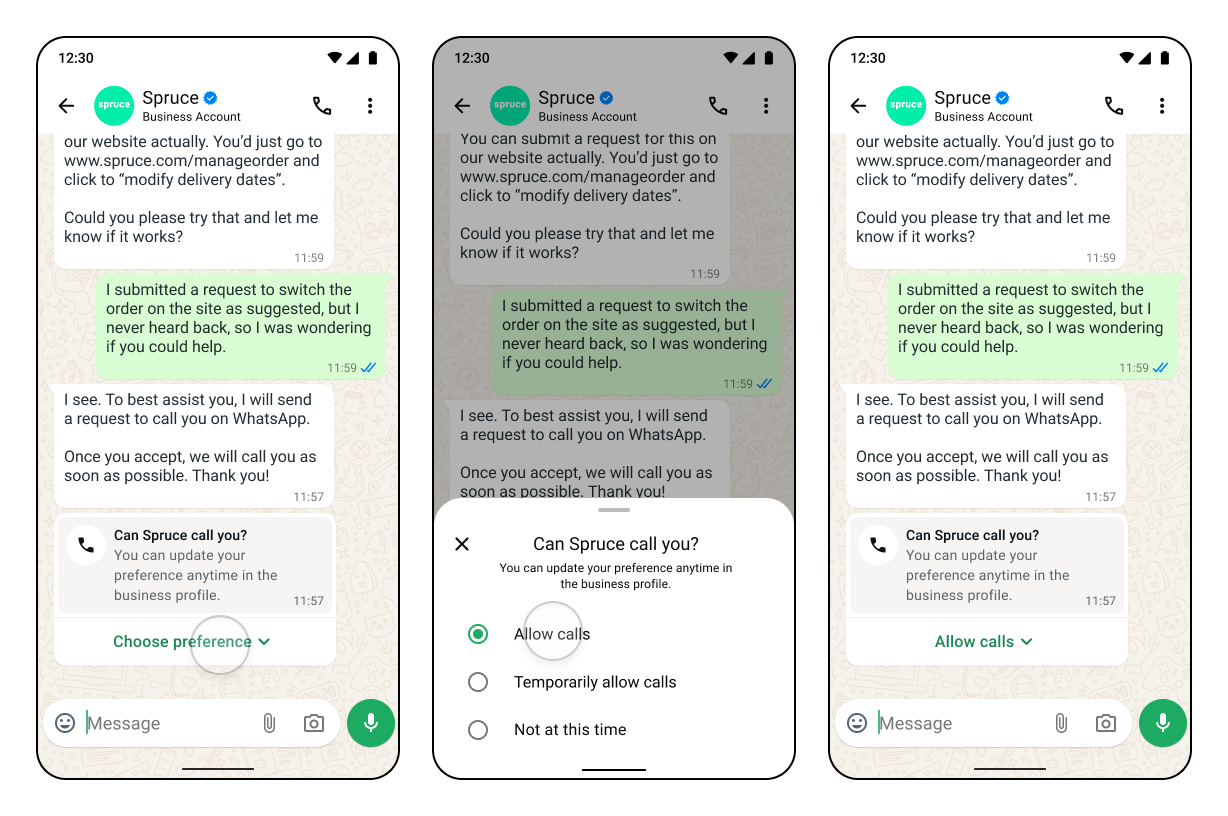
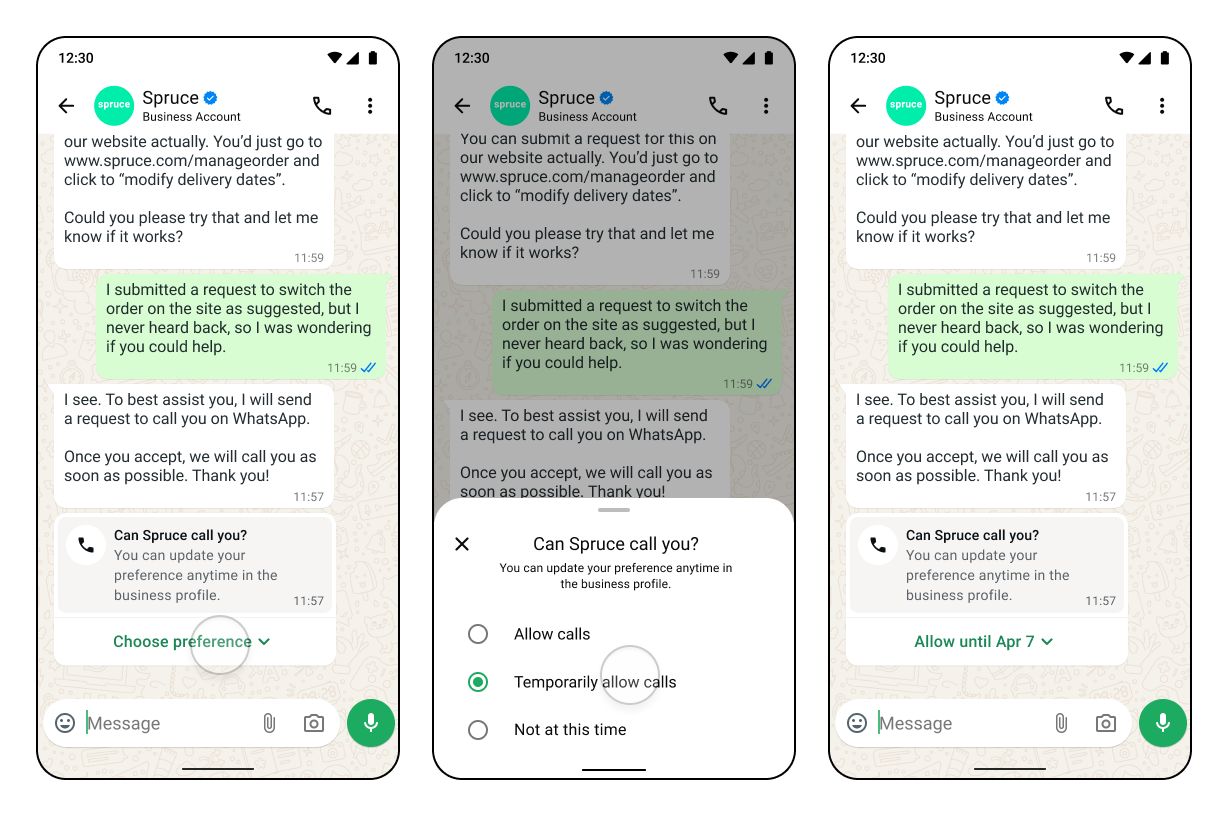
If you want to place a call to a WhatsApp user, your business must receive their permission first. The business has no control over this — permission can only be granted or revoked by the user, at any time.

**There are three ways a customer can grant call permission:**

<table cellpadding="0" cellspacing="0" width="100%"><tbody><tr><td><table cellpadding="0" cellspacing="0" width="100%"><tbody><tr><td>? &nbsp;<strong>Permission request message</strong> — You send the customer a free-form or template message requesting permission to call.</td></tr></tbody></table></td></tr><tr><td><table cellpadding="0" cellspacing="0" width="100%"><tbody><tr><td>? &nbsp;<strong>Customer calls you first</strong> — When a user calls your business, temporary permission is automatically granted (callback setting must be enabled).</td></tr></tbody></table></td></tr><tr><td><table cellpadding="0" cellspacing="0" width="100%"><tbody><tr><td>? &nbsp;<strong>Via Business Profile</strong> — The user can grant or update call permissions directly through your WhatsApp Business Profile at any time.</td></tr></tbody></table></td></tr></tbody></table>

---

<table cellpadding="0" cellspacing="0" id="permission-types" width="100%"><tbody><tr><td><p style="font-weight: 700">Temporary vs Permanent Permissions</p><p>Permanent permissions available as of November 3, 2025</p></td></tr></tbody></table>

When a customer approves a call permission request, they choose between two options:

<table cellpadding="0" cellspacing="0" width="100%"><tbody><tr><td style="vertical-align: top" width="48%"><p dir="ltr" style="font-weight: 700">&nbsp;Temporary Permission</p><ul><li>Lasts <strong>7 calendar days (168 hours)</strong> from the moment the user approves</li><li>Expires automatically — no notification sent on expiry</li><li>Subject to the connected calls limit</li><li>Can be requested again after expiry</li></ul></td><td width="4%"></td><td style="vertical-align: top" width="48%"><p dir="ltr" style="font-weight: 700">Permanent Permission</p><ul><li><strong>Does not expire</strong></li><li>Stored until the user explicitly revokes it</li><li>Subject to the same connected calls limit</li><li>User can revoke at any time via the Business Profile</li></ul></td></tr></tbody></table>

The screenshots below show how the permission options appear to the customer on their WhatsApp app:

<table cellpadding="0" cellspacing="0" width="100%"><tbody><tr><td style="vertical-align: top" width="48%"><p dir="ltr" style="font-weight: 600">&nbsp;Allow Calls (Permanent)</p><p>
![Prerequisites (image 13 of 22)](https://s3.amazonaws.com/cdn.freshdesk.com/data/helpdesk/attachments/production/155069763268/original/BRzAJvAQftu5LfSRGqP_cT7OYBViPV4b_g.png)

**Prerequisites (image 13 of 22)**

This screenshot appears in the "Prerequisites" section of "Whatsapp Calling in GHL Customer Care". The text alongside this image reads: The screenshots below show how the permission options appear to the customer on their WhatsApp app. This part of the guide covers 12 fields, listed below. Immediately after, the guide continues: Permission Limits Enforced automatically by WhatsApp to protect users.
- What this covers: The screenshots below show how the permission options appear to the customer on their WhatsApp app:
- Fields: Expires automatically — no notification sent on expiry, Subject to the connected calls limit, Can be requested again after expiry, Does not expire, Stored until the user explicitly revokes it, Subject to the same connected calls limit, User can revoke at any time via the Business Profile, Text body is optional but recommended, Header and footer are not supported, No new conversation window needed, Text body is required, Supports header and footer
- Controls: Connected, 2,000 conversations or higher, not using WhatsApp Coexistence, 4.18 or later, sub-account within 24 hours, not supported, United States, Canada, Turkey, Egypt, Vietnam, Nigeria
- Next: Permission Limits Enforced automatically by WhatsApp to protect users

Full procedure:

1. A WhatsApp phone number is connected and in a Connected status.
2. Your WhatsApp Business Account (WABA) messaging limit is 2,000 conversations or higher.
3. The phone number is not using WhatsApp Coexistence.
4. Users have permission to access the connected WhatsApp number.
5. LeadConnector Mobile App version 4.18 or later is installed for mobile calling.
</p></td><td width="4%"></td><td style="vertical-align: top" width="48%"><p dir="ltr" style="font-weight: 600">Temporarily Allow Calls</p><p>
![Prerequisites (image 14 of 22)](https://s3.amazonaws.com/cdn.freshdesk.com/data/helpdesk/attachments/production/155069763297/original/YgFUhA3h1HJdgvEYXax6qlpxLGUAdpvYEQ.png)

**Prerequisites (image 14 of 22)**

This screenshot appears in the "Prerequisites" section of "Whatsapp Calling in GHL Customer Care". The text alongside this image reads: The screenshots below show how the permission options appear to the customer on their WhatsApp app. This part of the guide covers 12 fields, listed below. Immediately after, the guide continues: Permission Limits Enforced automatically by WhatsApp to protect users.
- What this covers: The screenshots below show how the permission options appear to the customer on their WhatsApp app:
- Fields: Expires automatically — no notification sent on expiry, Subject to the connected calls limit, Can be requested again after expiry, Does not expire, Stored until the user explicitly revokes it, Subject to the same connected calls limit, User can revoke at any time via the Business Profile, Text body is optional but recommended, Header and footer are not supported, No new conversation window needed, Text body is required, Supports header and footer
- Controls: Connected, 2,000 conversations or higher, not using WhatsApp Coexistence, 4.18 or later, sub-account within 24 hours, not supported, United States, Canada, Turkey, Egypt, Vietnam, Nigeria
- Next: Permission Limits Enforced automatically by WhatsApp to protect users

Full procedure:

1. A WhatsApp phone number is connected and in a Connected status.
2. Your WhatsApp Business Account (WABA) messaging limit is 2,000 conversations or higher.
3. The phone number is not using WhatsApp Coexistence.
4. Users have permission to access the connected WhatsApp number.
5. LeadConnector Mobile App version 4.18 or later is installed for mobile calling.
</p></td></tr></tbody></table>

---

<table cellpadding="0" cellspacing="0" id="limits" width="100%"><tbody><tr><td><p style="font-weight: 700">Permission Limits</p><p>Enforced automatically by WhatsApp to protect users</p></td></tr></tbody></table>

| Limit | Value |
| --- | --- |
| Permission requests per contact per day | Maximum 1 every 24 hours |
| Permission requests within a 7-day period | Maximum 2 requests |
| Connected calls per business phone number | Maximum 100 every 24 hours |
| Temporary permission duration | 7 calendar days (168 hours) |
| When limits reset | When any connected call is made between the business and user |

---

<table cellpadding="0" cellspacing="0" id="how-to-request" width="100%"><tbody><tr><td><p style="font-weight: 700">How to Request Call Permission</p><p>Proactively send a permission request message to the customer</p></td></tr></tbody></table>

You can request call permission from a customer by sending a permission request message. The customer can then choose to **approve (temporary or permanent)**, **decline**, or simply not respond.

**Important:** Even if a customer approves permission, they can revoke it at any time. Conversely, if a customer declines, they can still choose to grant permission later — up until the request expires.

---

<table cellpadding="0" cellspacing="0" id="message-types" width="100%"><tbody><tr><td><p style="font-weight: 700">Free-Form vs Template Messages</p><p>Choose the right message type based on your conversation history</p></td></tr></tbody></table>

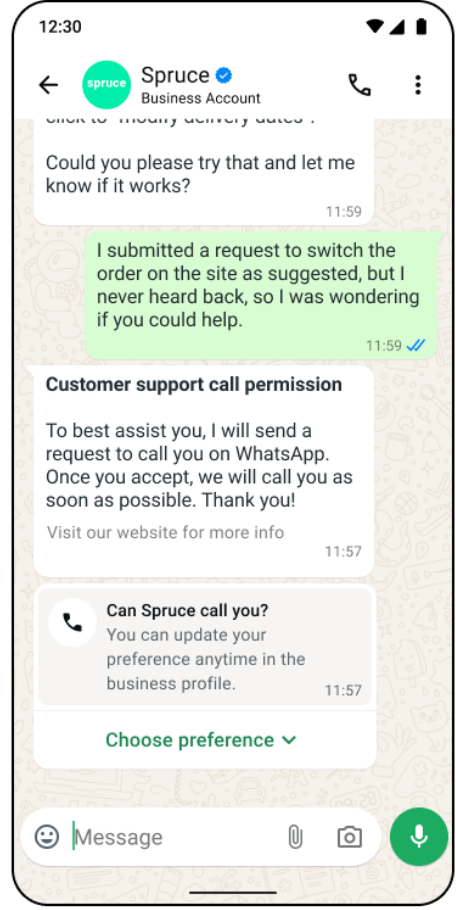
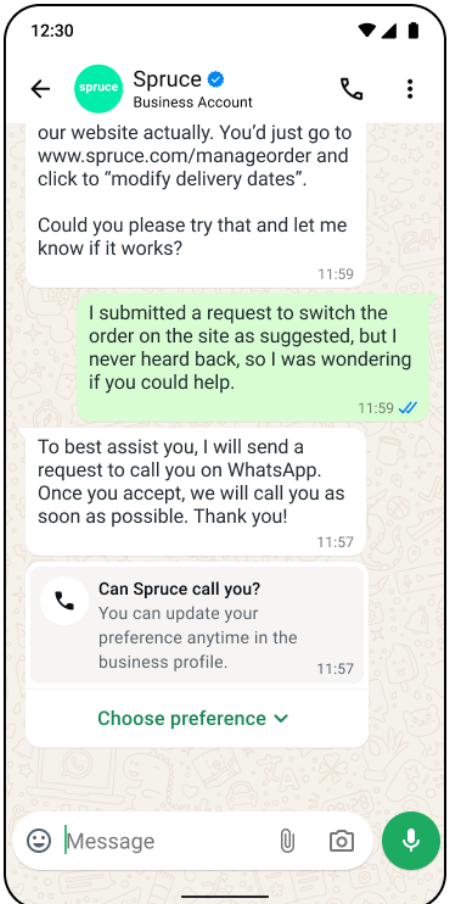
<table cellpadding="0" cellspacing="0" width="100%"><tbody><tr><td style="vertical-align: top" width="48%"><p style="font-weight: 700">? Free-Form Message</p><p><strong>When to use:</strong> You have an open customer service window with the contact.</p><ul><li>Text body is optional but recommended</li><li>Header and footer are <strong>not supported</strong></li><li>No new conversation window needed</li></ul></td><td width="4%"></td><td style="vertical-align: top" width="48%"><p style="font-weight: 700">? Template Message</p><p><strong>When to use:</strong> No recent conversation exists with the contact.</p><ul><li>Text body is <strong>required</strong></li><li>Supports header and footer</li><li>Must be pre-approved by WhatsApp</li></ul></td></tr></tbody></table>

— Criteria for Sending Call Permission Request Messages

![Prerequisites (image 15 of 22)](https://s3.amazonaws.com/cdn.freshdesk.com/data/helpdesk/attachments/production/155069761824/original/C7UtBrW4NDyeh2o7a7jxWu1SywP5M9rq1g.png)

**Prerequisites (image 15 of 22)**

This screenshot appears in the "Prerequisites" section of "Whatsapp Calling in GHL Customer Care". The text alongside this image reads: — Criteria for Sending Call Permission Request Messages. This part of the guide covers 12 fields, listed below. Immediately after, the guide continues: How template messages look to the customer.
- What this covers: — Criteria for Sending Call Permission Request Messages
- Fields: Expires automatically — no notification sent on expiry, Subject to the connected calls limit, Can be requested again after expiry, Does not expire, Stored until the user explicitly revokes it, Subject to the same connected calls limit, User can revoke at any time via the Business Profile, Text body is optional but recommended, Header and footer are not supported, No new conversation window needed, Text body is required, Supports header and footer
- Controls: Connected, 2,000 conversations or higher, not using WhatsApp Coexistence, 4.18 or later, sub-account within 24 hours, not supported, United States, Canada, Turkey, Egypt, Vietnam, Nigeria
- Next: How template messages look to the customer:

Full procedure:

1. A WhatsApp phone number is connected and in a Connected status.
2. Your WhatsApp Business Account (WABA) messaging limit is 2,000 conversations or higher.
3. The phone number is not using WhatsApp Coexistence.
4. Users have permission to access the connected WhatsApp number.
5. LeadConnector Mobile App version 4.18 or later is installed for mobile calling.

**How template messages look to the customer:**

<table cellpadding="0" cellspacing="0" width="100%"><tbody><tr><td style="vertical-align: top" width="48%"><p dir="ltr" style="font-weight: 600">&nbsp;Template with Header, Body &amp; Footer</p><p>
![Prerequisites (image 16 of 22)](https://s3.amazonaws.com/cdn.freshdesk.com/data/helpdesk/attachments/production/155069761953/original/vlJ_H7XFc9RuNO1_0_fvu0afC_em7b6Mog.png)

**Prerequisites (image 16 of 22)**

This screenshot appears in the "Prerequisites" section of "Whatsapp Calling in GHL Customer Care". The text alongside this image reads: How template messages look to the customer. This part of the guide covers 12 fields, listed below. Immediately after, the guide continues: Free-Form Message with No Text Body.
- What this covers: How template messages look to the customer:
- Fields: Expires automatically — no notification sent on expiry, Subject to the connected calls limit, Can be requested again after expiry, Does not expire, Stored until the user explicitly revokes it, Subject to the same connected calls limit, User can revoke at any time via the Business Profile, Text body is optional but recommended, Header and footer are not supported, No new conversation window needed, Text body is required, Supports header and footer
- Controls: Connected, 2,000 conversations or higher, not using WhatsApp Coexistence, 4.18 or later, sub-account within 24 hours, not supported, United States, Canada, Turkey, Egypt, Vietnam, Nigeria
- Next: Free-Form Message with No Text Body

Full procedure:

1. A WhatsApp phone number is connected and in a Connected status.
2. Your WhatsApp Business Account (WABA) messaging limit is 2,000 conversations or higher.
3. The phone number is not using WhatsApp Coexistence.
4. Users have permission to access the connected WhatsApp number.
5. LeadConnector Mobile App version 4.18 or later is installed for mobile calling.
</p></td><td width="4%"></td><td style="vertical-align: top" width="48%"><p dir="ltr" style="font-weight: 600">&nbsp;Template with Body Only</p><p>
![Prerequisites (image 17 of 22)](https://s3.amazonaws.com/cdn.freshdesk.com/data/helpdesk/attachments/production/155069762003/original/W5XTKdjwFZxBXeOSWCL7jmbwEtVcbAl8UQ.png)

**Prerequisites (image 17 of 22)**

This screenshot appears in the "Prerequisites" section of "Whatsapp Calling in GHL Customer Care". The text alongside this image reads: How template messages look to the customer. This part of the guide covers 12 fields, listed below. Immediately after, the guide continues: Free-Form Message with No Text Body.
- What this covers: How template messages look to the customer:
- Fields: Expires automatically — no notification sent on expiry, Subject to the connected calls limit, Can be requested again after expiry, Does not expire, Stored until the user explicitly revokes it, Subject to the same connected calls limit, User can revoke at any time via the Business Profile, Text body is optional but recommended, Header and footer are not supported, No new conversation window needed, Text body is required, Supports header and footer
- Controls: Connected, 2,000 conversations or higher, not using WhatsApp Coexistence, 4.18 or later, sub-account within 24 hours, not supported, United States, Canada, Turkey, Egypt, Vietnam, Nigeria
- Next: Free-Form Message with No Text Body

Full procedure:

1. A WhatsApp phone number is connected and in a Connected status.
2. Your WhatsApp Business Account (WABA) messaging limit is 2,000 conversations or higher.
3. The phone number is not using WhatsApp Coexistence.
4. Users have permission to access the connected WhatsApp number.
5. LeadConnector Mobile App version 4.18 or later is installed for mobile calling.
</p></td></tr></tbody></table>

Free-Form Message with No Text Body

![Prerequisites (image 18 of 22)](https://s3.amazonaws.com/cdn.freshdesk.com/data/helpdesk/attachments/production/155069762107/original/5k2EQTqU7ilUHhCyldp2ScyzVXD7ojR5XQ.png)

**Prerequisites (image 18 of 22)**

This screenshot appears in the "Prerequisites" section of "Whatsapp Calling in GHL Customer Care". The text alongside this image reads: Free-Form Message with No Text Body. For context, this section explains: Meeting the required prerequisites ensures WhatsApp Calling functions correctly and complies with Meta's eligibility requirements. Verify each requirement before enabling the feature for your business. This part of the guide covers 12 fields, listed below. Immediately after, the guide continues: Best practice: Always include a clear, specific reason for the call in your message body. For example: "We'd like to call you to confirm delivery of your order #ON-12345." This context significantly improves customer approval rates.
- What this covers: Free-Form Message with No Text Body
- Fields: Expires automatically — no notification sent on expiry, Subject to the connected calls limit, Can be requested again after expiry, Does not expire, Stored until the user explicitly revokes it, Subject to the same connected calls limit, User can revoke at any time via the Business Profile, Text body is optional but recommended, Header and footer are not supported, No new conversation window needed, Text body is required, Supports header and footer
- Controls: Connected, 2,000 conversations or higher, not using WhatsApp Coexistence, 4.18 or later, sub-account within 24 hours, not supported, United States, Canada, Turkey, Egypt, Vietnam, Nigeria
- Next: Best practice: Always include a clear, specific reason for the call in your message body. For example: "We'd like to call you to confirm delivery of your order #ON-12345." This context significantly improves customer approval rates.

Full procedure:

1. A WhatsApp phone number is connected and in a Connected status.
2. Your WhatsApp Business Account (WABA) messaging limit is 2,000 conversations or higher.
3. The phone number is not using WhatsApp Coexistence.
4. Users have permission to access the connected WhatsApp number.
5. LeadConnector Mobile App version 4.18 or later is installed for mobile calling.

 Best practice: Always include a clear, specific reason for the call in your message body. For example: _"We'd like to call you to confirm delivery of your order #ON-12345."_ This context significantly improves customer approval rates.

---

<table cellpadding="0" cellspacing="0" id="unanswered" width="100%"><tbody><tr><td><p style="font-weight: 700">Consecutive Unanswered Calls</p><p>WhatsApp automatically protects users from repeated missed calls</p></td></tr></tbody></table>

If your business repeatedly calls a customer and the calls go unanswered, WhatsApp takes automatic protective action:

<table cellpadding="0" cellspacing="0" width="100%"><tbody><tr><td><table cellpadding="0" cellspacing="0" width="100%"><tbody><tr><td><p dir="ltr" style="font-weight: 700">2 Consecutive Unanswered Calls</p><p>WhatsApp sends the user a <strong>system message</strong> prompting them to reconsider whether they still want to allow this business to call them.</p></td></tr></tbody></table></td></tr><tr><td><table cellpadding="0" cellspacing="0" width="100%"><tbody><tr><td><p dir="ltr" style="font-weight: 700">&nbsp;4 Consecutive Unanswered Calls</p><p>Call permission is <strong>automatically revoked</strong> by WhatsApp. The user may choose to grant it again, but only through their own explicit action.</p></td></tr></tbody></table></td></tr></tbody></table>

**Note:** Only call customers when there is a clear, relevant reason. Repeated unanswered calls damage trust, trigger automatic warnings, and risk permanent permission revocation.

---

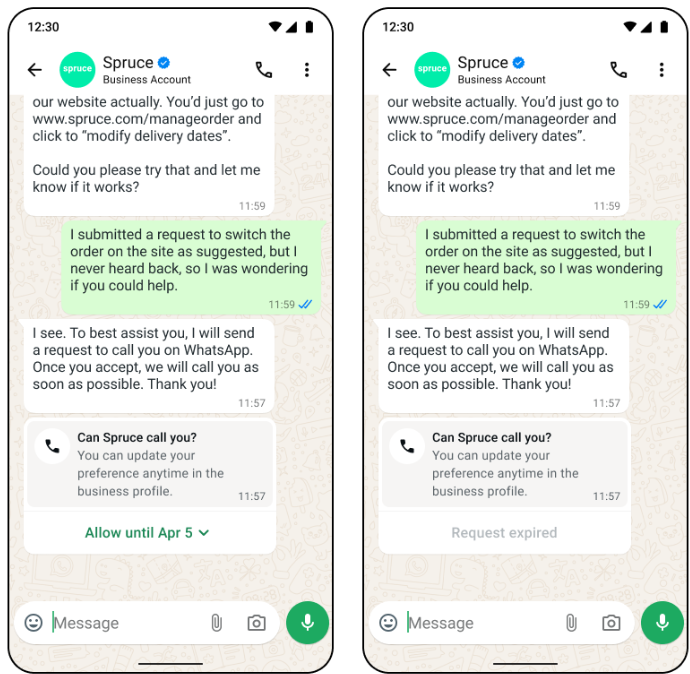
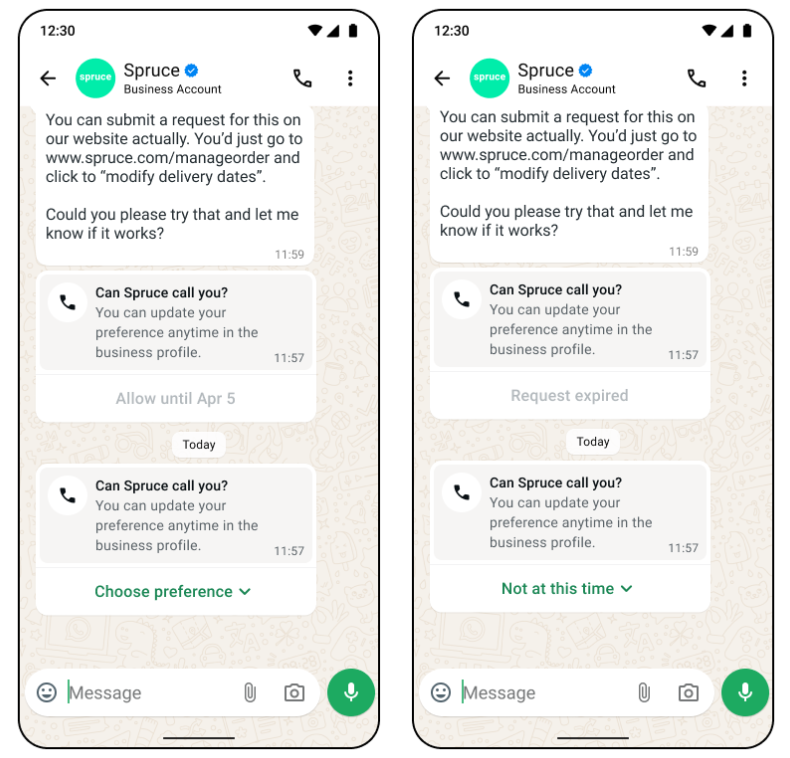
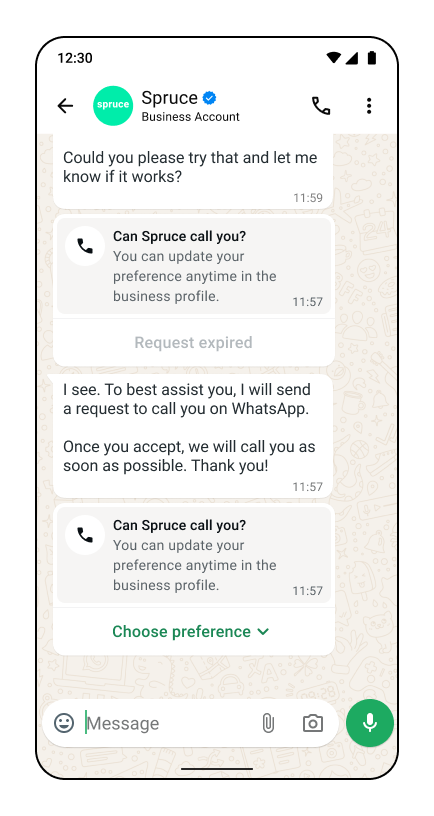
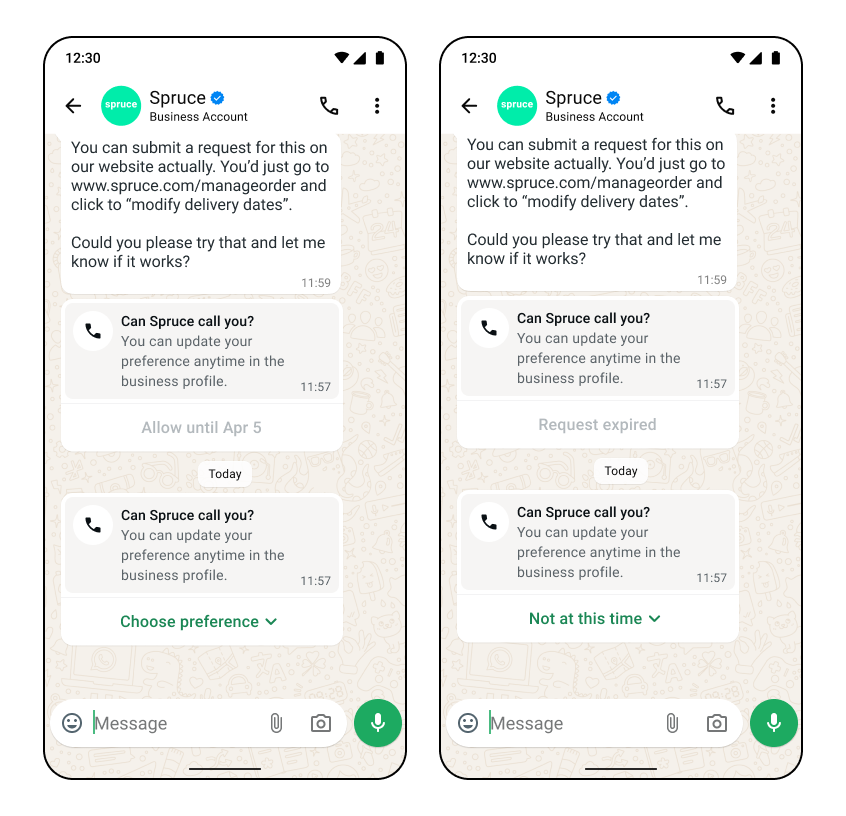
<table cellpadding="0" cellspacing="0" id="expiry" width="100%"><tbody><tr><td><p style="font-weight: 700">Permission Request Expiry Scenarios</p><p>A permission request expires in one of three situations</p></td></tr></tbody></table>

| Scenario | What Happens |
| --- | --- |
| User accepts or declines the request | Request expires 7 days after the user's response |
| User does not respond | Request expires 7 days after delivery |
| A new permission request is sent | The previous request expires **immediately** |

**Expiry scenario screenshots:**

<table cellpadding="0" cellspacing="0" width="100%"><tbody><tr><td style="vertical-align: top" width="48%"><p dir="ltr" style="font-weight: 600">&nbsp;Expires After 7 Days (User Responded)</p><p>
![Prerequisites (image 19 of 22)](https://s3.amazonaws.com/cdn.freshdesk.com/data/helpdesk/attachments/production/155069762194/original/ysWVw16Fn9cBhX6Gc7thH6pbJqGUFYa4Pw.png)

**Prerequisites (image 19 of 22)**

This screenshot appears in the "Prerequisites" section of "Whatsapp Calling in GHL Customer Care". The text alongside this image reads: Scenario What Happens User accepts or declines the request Request expires 7 days after the user's response User does not respond Request expires 7 days after delivery A new permission request is sent The previous request expires immediately. This part of the guide covers 12 fields, listed below. Immediately after, the guide continues: Previous Expires, New Request Received Previous Expires, User Approves New Request.
- What this covers: Scenario What Happens User accepts or declines the request Request expires 7 days after the user's response User does not respond Request expires 7 days after delivery A new permission request is sent The previous request expires immediately
- Fields: Expires automatically — no notification sent on expiry, Subject to the connected calls limit, Can be requested again after expiry, Does not expire, Stored until the user explicitly revokes it, Subject to the same connected calls limit, User can revoke at any time via the Business Profile, Text body is optional but recommended, Header and footer are not supported, No new conversation window needed, Text body is required, Supports header and footer
- Controls: Connected, 2,000 conversations or higher, not using WhatsApp Coexistence, 4.18 or later, sub-account within 24 hours, not supported, United States, Canada, Turkey, Egypt, Vietnam, Nigeria
- Next: Previous Expires, New Request Received Previous Expires, User Approves New Request
Full procedure:

1. A WhatsApp phone number is connected and in a Connected status.
2. Your WhatsApp Business Account (WABA) messaging limit is 2,000 conversations or higher.
3. The phone number is not using WhatsApp Coexistence.
4. Users have permission to access the connected WhatsApp number.
5. LeadConnector Mobile App version 4.18 or later is installed for mobile calling.
</p></td><td width="4%"></td><td style="vertical-align: top" width="48%"><p dir="ltr" style="font-weight: 600">&nbsp;Expires After 7 Days (No Response)</p><p>
![Prerequisites (image 20 of 22)](https://s3.amazonaws.com/cdn.freshdesk.com/data/helpdesk/attachments/production/155069762568/original/w_h26HnBHX0HkibJKux-t6ZRAIlNip8Dsw.png)

**Prerequisites (image 20 of 22)**

This screenshot appears in the "Prerequisites" section of "Whatsapp Calling in GHL Customer Care". The text alongside this image reads: Scenario What Happens User accepts or declines the request Request expires 7 days after the user's response User does not respond Request expires 7 days after delivery A new permission request is sent The previous request expires immediately. This part of the guide covers 12 fields, listed below. Immediately after, the guide continues: Previous Expires, New Request Received Previous Expires, User Approves New Request.
- What this covers: Scenario What Happens User accepts or declines the request Request expires 7 days after the user's response User does not respond Request expires 7 days after delivery A new permission request is sent The previous request expires immediately
- Fields: Expires automatically — no notification sent on expiry, Subject to the connected calls limit, Can be requested again after expiry, Does not expire, Stored until the user explicitly revokes it, Subject to the same connected calls limit, User can revoke at any time via the Business Profile, Text body is optional but recommended, Header and footer are not supported, No new conversation window needed, Text body is required, Supports header and footer
- Controls: Connected, 2,000 conversations or higher, not using WhatsApp Coexistence, 4.18 or later, sub-account within 24 hours, not supported, United States, Canada, Turkey, Egypt, Vietnam, Nigeria
- Next: Previous Expires, New Request Received Previous Expires, User Approves New Request

Full procedure:

1. A WhatsApp phone number is connected and in a Connected status.
2. Your WhatsApp Business Account (WABA) messaging limit is 2,000 conversations or higher.
3. The phone number is not using WhatsApp Coexistence.
4. Users have permission to access the connected WhatsApp number.
5. LeadConnector Mobile App version 4.18 or later is installed for mobile calling.
</p></td></tr></tbody></table>

<table cellpadding="0" cellspacing="0" width="100%"><tbody><tr><td style="vertical-align: top" width="48%"><p dir="ltr" style="font-weight: 600">&nbsp;Previous Expires, New Request Received</p><p>
![Prerequisites (image 21 of 22)](https://s3.amazonaws.com/cdn.freshdesk.com/data/helpdesk/attachments/production/155069762580/original/eWFxfd96ZC7WjfBbu_ClVLUSW3lDiVQdcw.png)

**Prerequisites (image 21 of 22)**

This screenshot appears in the "Prerequisites" section of "Whatsapp Calling in GHL Customer Care". The text alongside this image reads: Expires After 7 Days (User Responded) Expires After 7 Days (No Response). This part of the guide covers 12 fields, listed below. Immediately after, the guide continues: No webhook notification is sent when a temporary permission expires. To check the current permission status of a contact at any time, query the Get Current Call Permission State endpoint in the WhatsApp Business API.
- What this covers: Expires After 7 Days (User Responded) Expires After 7 Days (No Response)
- Fields: Expires automatically — no notification sent on expiry, Subject to the connected calls limit, Can be requested again after expiry, Does not expire, Stored until the user explicitly revokes it, Subject to the same connected calls limit, User can revoke at any time via the Business Profile, Text body is optional but recommended, Header and footer are not supported, No new conversation window needed, Text body is required, Supports header and footer
- Controls: Connected, 2,000 conversations or higher, not using WhatsApp Coexistence, 4.18 or later, sub-account within 24 hours, not supported, United States, Canada, Turkey, Egypt, Vietnam, Nigeria
- Next: No webhook notification is sent when a temporary permission expires. To check the current permission status of a contact at any time, query the Get Current Call Permission State endpoint in the WhatsApp Business API.

Full procedure:

1. A WhatsApp phone number is connected and in a Connected status.
2. Your WhatsApp Business Account (WABA) messaging limit is 2,000 conversations or higher.
3. The phone number is not using WhatsApp Coexistence.
4. Users have permission to access the connected WhatsApp number.
5. LeadConnector Mobile App version 4.18 or later is installed for mobile calling.
</p></td><td width="4%"></td><td style="vertical-align: top" width="48%"><p dir="ltr" style="font-weight: 600">Previous Expires, User Approves New Request</p><p>
![Prerequisites (image 22 of 22)](https://s3.amazonaws.com/cdn.freshdesk.com/data/helpdesk/attachments/production/155069762599/original/SuaHRQ2Ky19b0CyRtL5UOpl4LOuRgJWzLQ.png)

**Prerequisites (image 22 of 22)**

This screenshot appears in the "Prerequisites" section of "Whatsapp Calling in GHL Customer Care". The text alongside this image reads: Expires After 7 Days (User Responded) Expires After 7 Days (No Response). This part of the guide covers 12 fields, listed below. Immediately after, the guide continues: No webhook notification is sent when a temporary permission expires. To check the current permission status of a contact at any time, query the Get Current Call Permission State endpoint in the WhatsApp Business API.
- What this covers: Expires After 7 Days (User Responded) Expires After 7 Days (No Response)
- Fields: Expires automatically — no notification sent on expiry, Subject to the connected calls limit, Can be requested again after expiry, Does not expire, Stored until the user explicitly revokes it, Subject to the same connected calls limit, User can revoke at any time via the Business Profile, Text body is optional but recommended, Header and footer are not supported, No new conversation window needed, Text body is required, Supports header and footer
- Controls: Connected, 2,000 conversations or higher, not using WhatsApp Coexistence, 4.18 or later, sub-account within 24 hours, not supported, United States, Canada, Turkey, Egypt, Vietnam, Nigeria
- Next: No webhook notification is sent when a temporary permission expires. To check the current permission status of a contact at any time, query the Get Current Call Permission State endpoint in the WhatsApp Business API.

Full procedure:

1. A WhatsApp phone number is connected and in a Connected status.
2. Your WhatsApp Business Account (WABA) messaging limit is 2,000 conversations or higher.
3. The phone number is not using WhatsApp Coexistence.
4. Users have permission to access the connected WhatsApp number.
5. LeadConnector Mobile App version 4.18 or later is installed for mobile calling.
</p></td></tr></tbody></table>

No webhook notification is sent when a temporary permission expires. To check the current permission status of a contact at any time, query the **Get Current Call Permission State** endpoint in the WhatsApp Business API.

---

<table cellpadding="0" cellspacing="0" width="100%"><tbody><tr><td><p style="font-weight: 700">✅ Key Takeaways</p><p>Call permission is always controlled by the user — you can request it, but you cannot force it. Keep messages clear and relevant, respect the request limits, only call when there is genuine value, and handle unanswered calls carefully. This builds customer trust and keeps your permission status healthy.</p></td></tr></tbody></table>

## WhatsApp Calling Pricing

WhatsApp Calling rates are charged **per minute** and vary by market. Rates listed below are in **USD** and apply to business-initiated calls. User-initiated (inbound) calls are **free of charge**.

User-Initiated Calls

Free

No charge when customer calls your business

Business-Initiated Calls

Per minute

Rate depends on destination market

### How Calls Are Billed

Businesses are charged for calls based on:

<table cellpadding="0" cellspacing="0" width="100%"><tbody><tr><td><table cellpadding="0" cellspacing="0" width="100%"><tbody><tr><td><strong>Duration of the call</strong> — calculated in <strong>six-second pulses</strong></td></tr></tbody></table></td></tr><tr><td><table cellpadding="0" cellspacing="0" width="100%"><tbody><tr><td><strong>Country code</strong> of the phone number being called</td></tr></tbody></table></td></tr></tbody></table>

**Example:** A 56-second call = 9.33 pulses → rounded up to **10 pulses**.
Fractional pulses are always counted as one full pulse.

### Call Rates by Market (USD per minute)

| Market | Country Code | Currency | Rate per Minute |
| --- | --- | --- | --- |
| Argentina | +54 | USD | $0.0106 |
| Brazil | +55 | USD | $0.0113 |
| Chile | +56 | USD | $0.0127 |
| Colombia | +57 | USD | $0.0117 |
| France | +33 | USD | $0.0104 |
| Germany | +49 | USD | $0.0108 |
| India | +91 | USD | $0.0056 |
| Indonesia | +62 | USD | $0.0254 |
| Israel | +972 | USD | $0.0133 |
| Italy | +39 | USD | $0.0127 |
| Malaysia | +60 | USD | $0.0113 |
| Mexico | +52 | USD | $0.0099 |
| Netherlands | +31 | USD | $0.0066 |
| Pakistan | +92 | USD | $0.0125 |
| Peru | +51 | USD | $0.0127 |
| Russia | +7 | USD | $0.0102 |
| Saudi Arabia | +966 | USD | $0.0133 |
| South Africa | +27 | USD | $0.0113 |
| Spain | +34 | USD | $0.0135 |
| United Arab Emirates | +971 | USD | $0.0133 |
| United Kingdom | +44 | USD | $0.0104 |
| Rest of Africa | Various | USD | $0.0108 |
| Rest of Asia Pacific | Various | USD | $0.0120 |
| Rest of Central & Eastern Europe | Various | USD | $0.0100 |
| Rest of Latin America | Various | USD | $0.0122 |
| Rest of Middle East | Various | USD | $0.0133 |
| Rest of Western Europe | Various | USD | $0.0108 |
| Other | Various | USD | $0.0139 |
| Egypt | +20 | USD | N/A |
| Nigeria | +234 | USD | N/A |
| Turkey | +90 | USD | N/A |
| North America (US & Canada) | +1 | USD | N/A |

 User-Initiated Calling
Available in **every location where Cloud API is available**. No country restrictions apply.

 Business-Initiated Calling

Your business can call customers in most countries. However, calling is **not available** if your business phone number is registered in any of these countries:

<table cellpadding="0" cellspacing="0" style="font-weight: 400; text-align: start" width="100%"><tbody><tr><td width="50%"><table cellpadding="0" cellspacing="0" width="100%"><tbody><tr><td dir="ltr" style="font-weight: 600">&nbsp;United States</td></tr><tr><td style="height: 5px"></td></tr><tr><td dir="ltr" style="font-weight: 600">Canada</td></tr><tr><td style="height: 5px"></td></tr><tr><td dir="ltr" style="font-weight: 600">&nbsp;Egypt</td></tr></tbody></table></td><td width="4%"></td><td width="46%"><table cellpadding="0" cellspacing="0" width="100%"><tbody><tr><td dir="ltr" style="font-weight: 600">&nbsp;Vietnam</td></tr><tr><td style="height: 5px"></td></tr><tr><td dir="ltr" style="font-weight: 600">&nbsp; Nigeria</td></tr></tbody></table></td></tr></tbody></table>

**Note:** The country restriction applies to your **business phone number**. Your customers can be located in any country where WhatsApp is supported.

<table cellpadding="0" cellspacing="0" id="faq" width="100%"><tbody><tr><td><p style="font-weight: 700">Frequently Asked Questions</p><p>Common questions about WhatsApp Calling</p></td></tr></tbody></table>

<table cellpadding="0" cellspacing="0" width="100%"><tbody><tr><td><p style="font-weight: 700">❓ Can I make WhatsApp calls from a desktop browser?</p><p>Yes. When configuring staff user settings, you can set the <strong>Default Channel for WhatsApp Calls</strong> to <strong>Web App</strong>, which allows calls to be handled directly from the CRM browser interface.</p></td></tr></tbody></table>

<table cellpadding="0" cellspacing="0" width="100%"><tbody><tr><td><p style="font-weight: 700">❓ Do I need customer permission before making a call?</p><p>Yes. WhatsApp requires <strong>explicit customer approval</strong> before your business can initiate an outbound call. Inbound calls from customers do not require prior permission.</p></td></tr></tbody></table>

<table cellpadding="0" cellspacing="0" width="100%"><tbody><tr><td><p style="font-weight: 700">❓ How long does call permission last?</p><p>Temporary permission lasts <strong>7 calendar days (168 hours)</strong>. Permanent permission does not expire. If the customer does not respond to a request, it expires after <strong>7 days</strong>.</p></td></tr></tbody></table>

<table cellpadding="0" cellspacing="0" width="100%"><tbody><tr><td><p style="font-weight: 700">❓ How many permission requests can I send to the same customer?</p><p><strong>1 request every 24 hours</strong>, maximum <strong>2 requests within a 7-day period</strong>. These limits reset when any connected call is made between your business and the user.</p></td></tr></tbody></table>

<table cellpadding="0" cellspacing="0" width="100%"><tbody><tr><td><p style="font-weight: 700">❓ Is WhatsApp Calling available in my country?</p><p>WhatsApp Calling is available in most countries. It is currently <strong>not supported</strong> in the United States, Canada, Turkey, Egypt, Vietnam, and Nigeria.</p></td></tr></tbody></table>

<table cellpadding="0" cellspacing="0" width="100%"><tbody><tr><td><p style="font-weight: 700">❓ What happens if I miss an inbound WhatsApp call?</p><p>If a call goes unanswered, the customer can request a callback if you have enabled <strong>Allow People to Request Callback for Missed Calls</strong>. The missed call is also logged in the customer's conversation.</p></td></tr></tbody></table>

<table cellpadding="0" cellspacing="0" width="100%"><tbody><tr><td><p style="font-weight: 700">❓ Can multiple team members receive the same inbound call?</p><p>Yes. In <strong>Ring WhatsApp Calls To</strong>, you can assign a <strong>primary user</strong> who rings first and add additional team members as backup. If the primary user does not answer, the call routes to the next assigned user.</p></td></tr></tbody></table>

<table cellpadding="0" cellspacing="0" width="100%"><tbody><tr><td><p style="font-weight: 700">❓ Can a customer revoke call permission?</p><p>Yes. Customers can revoke permission at any time by opening the WhatsApp chat, tapping the <strong>business profile name</strong>, going to <strong>Business Calling Permissions</strong>, and disabling call access.</p></td></tr></tbody></table>

<table cellpadding="0" cellspacing="0" width="100%"><tbody><tr><td><p style="font-weight: 700">❓ What is a call disposition and why should I use it?</p><p>A call disposition is an <strong>outcome tag</strong> you add after a call — for example, <em>Resolved</em>, <em>Follow-up Required</em>, or <em>No Answer</em>. It keeps records accurate and makes follow-ups easier to track.</p></td></tr></tbody></table>

<table cellpadding="0" cellspacing="0" width="100%"><tbody><tr><td><p style="font-weight: 700">❓ What happens after 4 consecutive unanswered calls?</p><p dir="ltr">After <strong>2 unanswered calls</strong>, WhatsApp sends the user a system message prompting them to reconsider. After <strong>4 unanswered calls</strong>, call permission is <strong>automatically revoked</strong> by WhatsApp.</p></td></tr></tbody></table>

<table cellpadding="0" cellspacing="0" width="100%"><tbody><tr><td><p dir="ltr" style="font-weight: 700">❓What happens if permission is auto-revoked?</p><p dir="ltr">If a customer does not answer 4 consecutive outbound calls, WhatsApp automatically revokes calling permission. You will need to request permission again to place future calls.</p></td></tr></tbody></table>

---

Documentation for GHL Customer Care. Support: support@ghlcustomercare.com